> ## Documentation Index
> Fetch the complete documentation index at: https://docs-staging-chore-gt-workflow.mintlify.site/llms.txt
> Use this file to discover all available pages before exploring further.

> Learn how to configure an update policy form using Forms for Actions for users to review and accept new terms of service or consent updates.

# Use Cases: Configure an update policy form using Forms

<Card title="Before you start">
  1. Create a [Machine-to-Machine Application](/docs/get-started/auth0-overview/create-applications/machine-to-machine-apps) with the following scopes enabled:

  * `read:users`
  * `update:users`
  * `create:users`
  * `read:users_app_metadata`
  * `update:users_app_metadata`
  * `create:users_app_metadata`

  2. Add a [Vault connection](/docs/customize/forms/vault) using the M2M application credentials.
</Card>

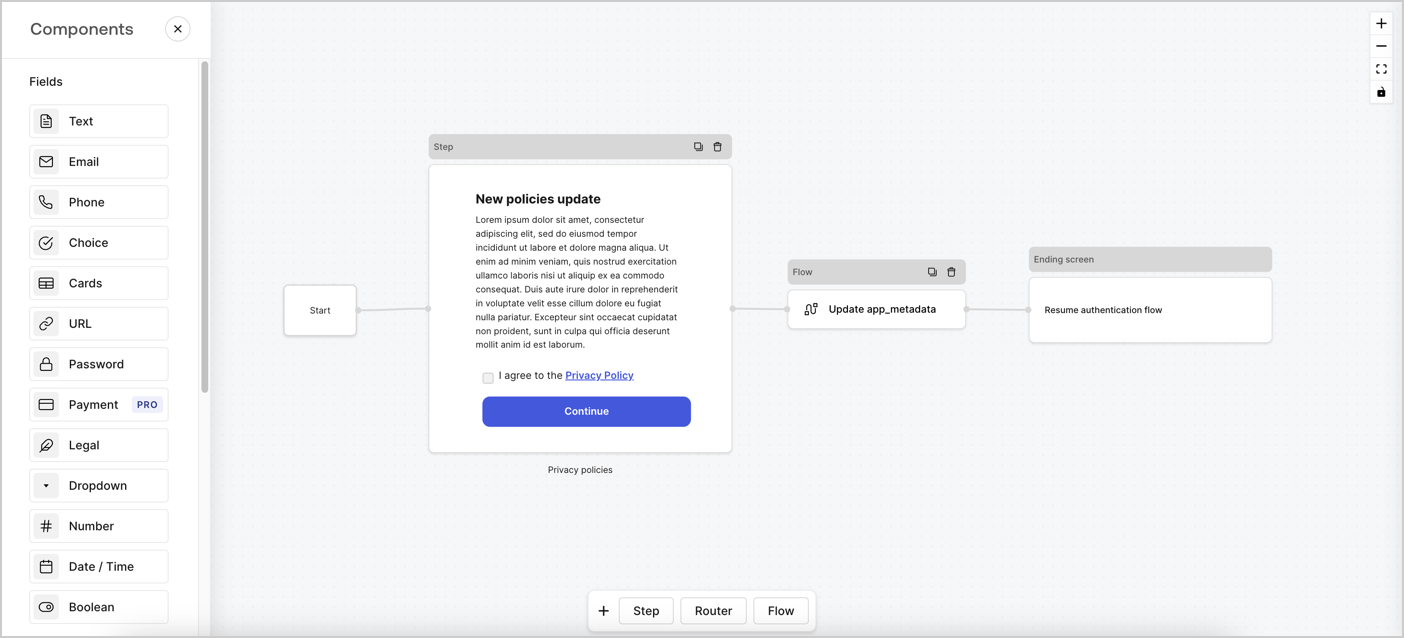
Forms for Actions allows you to create custom privacy policies flows and store the consent under the `app_metadata` object.
<Frame>
  <img src="https://mintcdn.com/docs-staging-chore-gt-workflow/uUVSo9swGrI6msJr/docs/images/cdy7uua7fh8z/6i68dMvHDTijfRmSgN1x8Q/ad900e7d4c0fb34645921435472b8684/privavy-policy-form.png?fit=max&auto=format&n=uUVSo9swGrI6msJr&q=85&s=a6094acbcc55c69f6101e153ac03b2d7" alt="Dashboard > Actions > Forms > Privacy policy use case" data-og-width="1404" width="1404" data-og-height="638" height="638" data-path="docs/images/cdy7uua7fh8z/6i68dMvHDTijfRmSgN1x8Q/ad900e7d4c0fb34645921435472b8684/privavy-policy-form.png" data-optimize="true" data-opv="3" srcset="https://mintcdn.com/docs-staging-chore-gt-workflow/uUVSo9swGrI6msJr/docs/images/cdy7uua7fh8z/6i68dMvHDTijfRmSgN1x8Q/ad900e7d4c0fb34645921435472b8684/privavy-policy-form.png?w=280&fit=max&auto=format&n=uUVSo9swGrI6msJr&q=85&s=ea39ce98d8d76eb35466a8629f7f53e8 280w, https://mintcdn.com/docs-staging-chore-gt-workflow/uUVSo9swGrI6msJr/docs/images/cdy7uua7fh8z/6i68dMvHDTijfRmSgN1x8Q/ad900e7d4c0fb34645921435472b8684/privavy-policy-form.png?w=560&fit=max&auto=format&n=uUVSo9swGrI6msJr&q=85&s=880e695530d34d1f82f61099b5e759d0 560w, https://mintcdn.com/docs-staging-chore-gt-workflow/uUVSo9swGrI6msJr/docs/images/cdy7uua7fh8z/6i68dMvHDTijfRmSgN1x8Q/ad900e7d4c0fb34645921435472b8684/privavy-policy-form.png?w=840&fit=max&auto=format&n=uUVSo9swGrI6msJr&q=85&s=fff736e33156a32127afd31d686fc21c 840w, https://mintcdn.com/docs-staging-chore-gt-workflow/uUVSo9swGrI6msJr/docs/images/cdy7uua7fh8z/6i68dMvHDTijfRmSgN1x8Q/ad900e7d4c0fb34645921435472b8684/privavy-policy-form.png?w=1100&fit=max&auto=format&n=uUVSo9swGrI6msJr&q=85&s=d54fa61aa8c344756755bca6551745d2 1100w, https://mintcdn.com/docs-staging-chore-gt-workflow/uUVSo9swGrI6msJr/docs/images/cdy7uua7fh8z/6i68dMvHDTijfRmSgN1x8Q/ad900e7d4c0fb34645921435472b8684/privavy-policy-form.png?w=1650&fit=max&auto=format&n=uUVSo9swGrI6msJr&q=85&s=a0f1d61017e13747585fecc627509202 1650w, https://mintcdn.com/docs-staging-chore-gt-workflow/uUVSo9swGrI6msJr/docs/images/cdy7uua7fh8z/6i68dMvHDTijfRmSgN1x8Q/ad900e7d4c0fb34645921435472b8684/privavy-policy-form.png?w=2500&fit=max&auto=format&n=uUVSo9swGrI6msJr&q=85&s=f7272adee3b63338850a20d4afabcab4 2500w" />
</Frame>

The sections below outline how you can create an Update Policy form using nodes and flows, along with steps for adding your form to a [Post Login](/docs/customize/actions/explore-triggers/signup-and-login-triggers/login-trigger) Action.

## Create a form from scratch

Follow these steps to create a form to gather information:

1. Open the Form editor by selecting **Auth0 Dashboard > Actions > Forms.**
2. Select **Create Form** > **Start from scratch**.

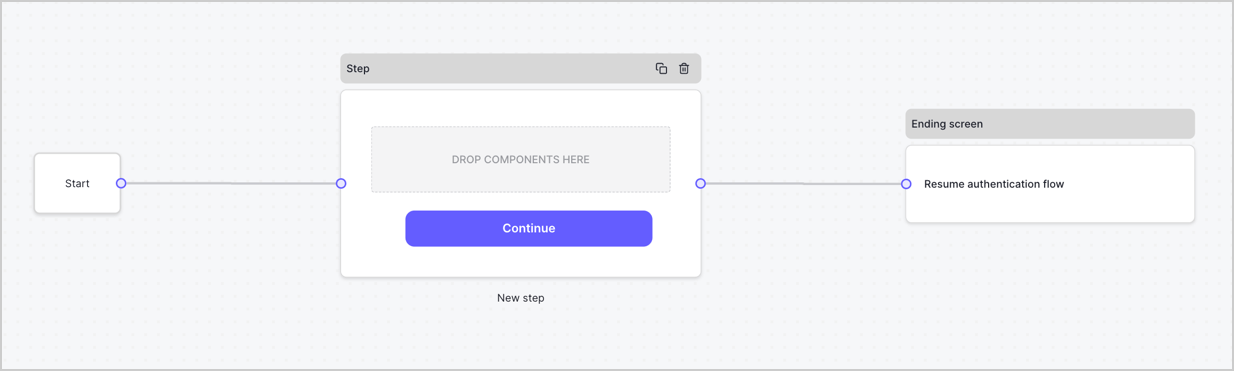
By default, a new form contains a Start node, a Step node, and an Ending screen node.
<Frame>
  <img src="https://mintcdn.com/docs-staging-chore-gt-workflow/xoRAC73DQanGNIU-/docs/images/cdy7uua7fh8z/2TZ9jSjgEcARFpULI6hz4R/a4319a1bd482f2ee5cc23100fdb2f42c/New-form-Forms-for-action-use-case.png?fit=max&auto=format&n=xoRAC73DQanGNIU-&q=85&s=ab145a7e65610fce0dfdf86d49e2bd81" alt="Dashboard > Forms > Use Cases > Form" data-og-width="1234" width="1234" data-og-height="371" height="371" data-path="docs/images/cdy7uua7fh8z/2TZ9jSjgEcARFpULI6hz4R/a4319a1bd482f2ee5cc23100fdb2f42c/New-form-Forms-for-action-use-case.png" data-optimize="true" data-opv="3" srcset="https://mintcdn.com/docs-staging-chore-gt-workflow/xoRAC73DQanGNIU-/docs/images/cdy7uua7fh8z/2TZ9jSjgEcARFpULI6hz4R/a4319a1bd482f2ee5cc23100fdb2f42c/New-form-Forms-for-action-use-case.png?w=280&fit=max&auto=format&n=xoRAC73DQanGNIU-&q=85&s=222b9a8045b87b6f0d5f2545da3594ec 280w, https://mintcdn.com/docs-staging-chore-gt-workflow/xoRAC73DQanGNIU-/docs/images/cdy7uua7fh8z/2TZ9jSjgEcARFpULI6hz4R/a4319a1bd482f2ee5cc23100fdb2f42c/New-form-Forms-for-action-use-case.png?w=560&fit=max&auto=format&n=xoRAC73DQanGNIU-&q=85&s=500c879b2eed7cdf8df16c706775175f 560w, https://mintcdn.com/docs-staging-chore-gt-workflow/xoRAC73DQanGNIU-/docs/images/cdy7uua7fh8z/2TZ9jSjgEcARFpULI6hz4R/a4319a1bd482f2ee5cc23100fdb2f42c/New-form-Forms-for-action-use-case.png?w=840&fit=max&auto=format&n=xoRAC73DQanGNIU-&q=85&s=63c1815f39d5bf5845c95653296950ff 840w, https://mintcdn.com/docs-staging-chore-gt-workflow/xoRAC73DQanGNIU-/docs/images/cdy7uua7fh8z/2TZ9jSjgEcARFpULI6hz4R/a4319a1bd482f2ee5cc23100fdb2f42c/New-form-Forms-for-action-use-case.png?w=1100&fit=max&auto=format&n=xoRAC73DQanGNIU-&q=85&s=7d843f86d44937ab79284f9fbf951fbd 1100w, https://mintcdn.com/docs-staging-chore-gt-workflow/xoRAC73DQanGNIU-/docs/images/cdy7uua7fh8z/2TZ9jSjgEcARFpULI6hz4R/a4319a1bd482f2ee5cc23100fdb2f42c/New-form-Forms-for-action-use-case.png?w=1650&fit=max&auto=format&n=xoRAC73DQanGNIU-&q=85&s=8231deedf3d13edf71ca7f05767f2546 1650w, https://mintcdn.com/docs-staging-chore-gt-workflow/xoRAC73DQanGNIU-/docs/images/cdy7uua7fh8z/2TZ9jSjgEcARFpULI6hz4R/a4319a1bd482f2ee5cc23100fdb2f42c/New-form-Forms-for-action-use-case.png?w=2500&fit=max&auto=format&n=xoRAC73DQanGNIU-&q=85&s=737fd53f99eb12b00de9cb9da5aba84b 2500w" />
</Frame>

### Configure the Step node

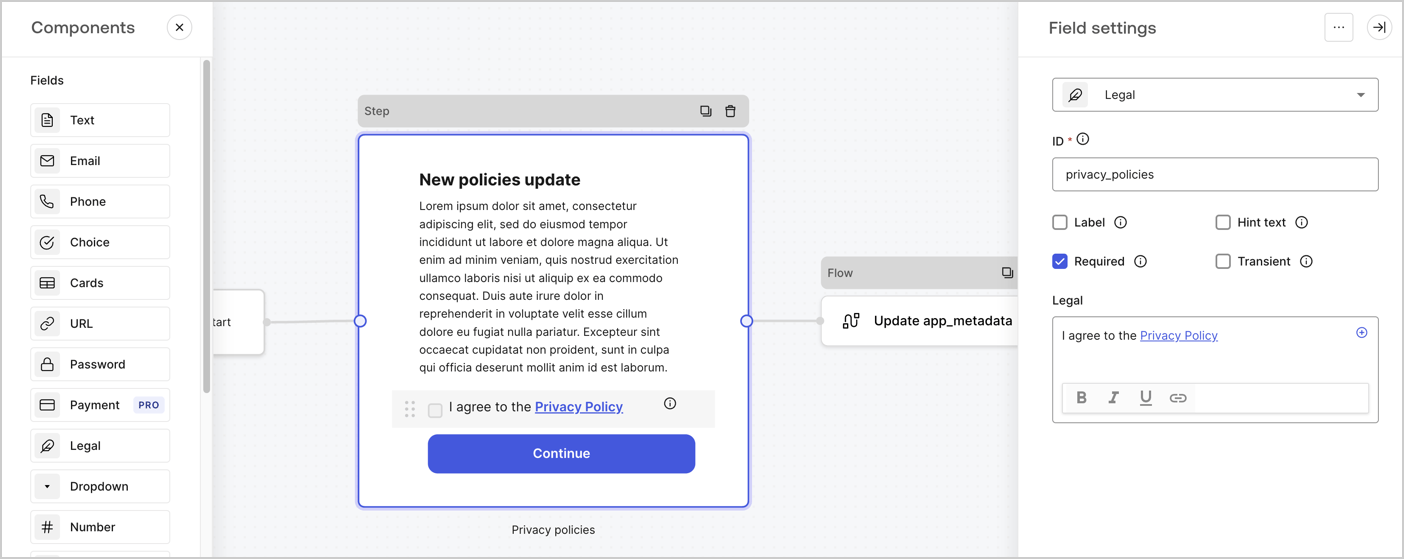
The Step node is the graphical interface visible to users. Add [Fields](/docs/customize/forms/nodes-and-components) to the Step node to collect the new agreement acceptance value by following these steps:

1. Drag a **Rich text** field from the **Components menu** into the **Step** node.

   * **Rich text**: Enter a description of your privacy policies updates.
   * Select **Save**.
2. Drag a **Legal** field into the **Step** node.

   * **ID**: Enter `privacy_policies`.
   * **Required**: Enable the checkbox.
   * **Legal**: Enter `I agree to the Privacy Policy`.
   * Select **Save**.
3. Select **Publish** to save.
<Frame>
  <img src="https://mintcdn.com/docs-staging-chore-gt-workflow/-rTDqj4sU__NbXFu/docs/images/cdy7uua7fh8z/59zFFjQjAnjogkc2QGIqqJ/0ad66b1b636544122aa4e65968b76c2c/privacy-policy-step-node.png?fit=max&auto=format&n=-rTDqj4sU__NbXFu&q=85&s=1cf3669a76bb9f7a277e62f1bb193feb" alt="Dashboard > Actions > Forms > Use case privacy policy step node" data-og-width="1404" width="1404" data-og-height="559" height="559" data-path="docs/images/cdy7uua7fh8z/59zFFjQjAnjogkc2QGIqqJ/0ad66b1b636544122aa4e65968b76c2c/privacy-policy-step-node.png" data-optimize="true" data-opv="3" srcset="https://mintcdn.com/docs-staging-chore-gt-workflow/-rTDqj4sU__NbXFu/docs/images/cdy7uua7fh8z/59zFFjQjAnjogkc2QGIqqJ/0ad66b1b636544122aa4e65968b76c2c/privacy-policy-step-node.png?w=280&fit=max&auto=format&n=-rTDqj4sU__NbXFu&q=85&s=45e41a8e70d6ded6e93a9fb91351d5b7 280w, https://mintcdn.com/docs-staging-chore-gt-workflow/-rTDqj4sU__NbXFu/docs/images/cdy7uua7fh8z/59zFFjQjAnjogkc2QGIqqJ/0ad66b1b636544122aa4e65968b76c2c/privacy-policy-step-node.png?w=560&fit=max&auto=format&n=-rTDqj4sU__NbXFu&q=85&s=f78359d4953abcc5656f36521709ca5f 560w, https://mintcdn.com/docs-staging-chore-gt-workflow/-rTDqj4sU__NbXFu/docs/images/cdy7uua7fh8z/59zFFjQjAnjogkc2QGIqqJ/0ad66b1b636544122aa4e65968b76c2c/privacy-policy-step-node.png?w=840&fit=max&auto=format&n=-rTDqj4sU__NbXFu&q=85&s=e7d6d43e48cb704612fd2c01bd315cdc 840w, https://mintcdn.com/docs-staging-chore-gt-workflow/-rTDqj4sU__NbXFu/docs/images/cdy7uua7fh8z/59zFFjQjAnjogkc2QGIqqJ/0ad66b1b636544122aa4e65968b76c2c/privacy-policy-step-node.png?w=1100&fit=max&auto=format&n=-rTDqj4sU__NbXFu&q=85&s=c56c989fdc2c5a1b4e3b61f008e95af1 1100w, https://mintcdn.com/docs-staging-chore-gt-workflow/-rTDqj4sU__NbXFu/docs/images/cdy7uua7fh8z/59zFFjQjAnjogkc2QGIqqJ/0ad66b1b636544122aa4e65968b76c2c/privacy-policy-step-node.png?w=1650&fit=max&auto=format&n=-rTDqj4sU__NbXFu&q=85&s=28bcb6c54cb84829f1ff0250a0c0fdad 1650w, https://mintcdn.com/docs-staging-chore-gt-workflow/-rTDqj4sU__NbXFu/docs/images/cdy7uua7fh8z/59zFFjQjAnjogkc2QGIqqJ/0ad66b1b636544122aa4e65968b76c2c/privacy-policy-step-node.png?w=2500&fit=max&auto=format&n=-rTDqj4sU__NbXFu&q=85&s=fe4b99a57155252bda32af6327af6caa 2500w" />
</Frame>

### Configure the Flow node

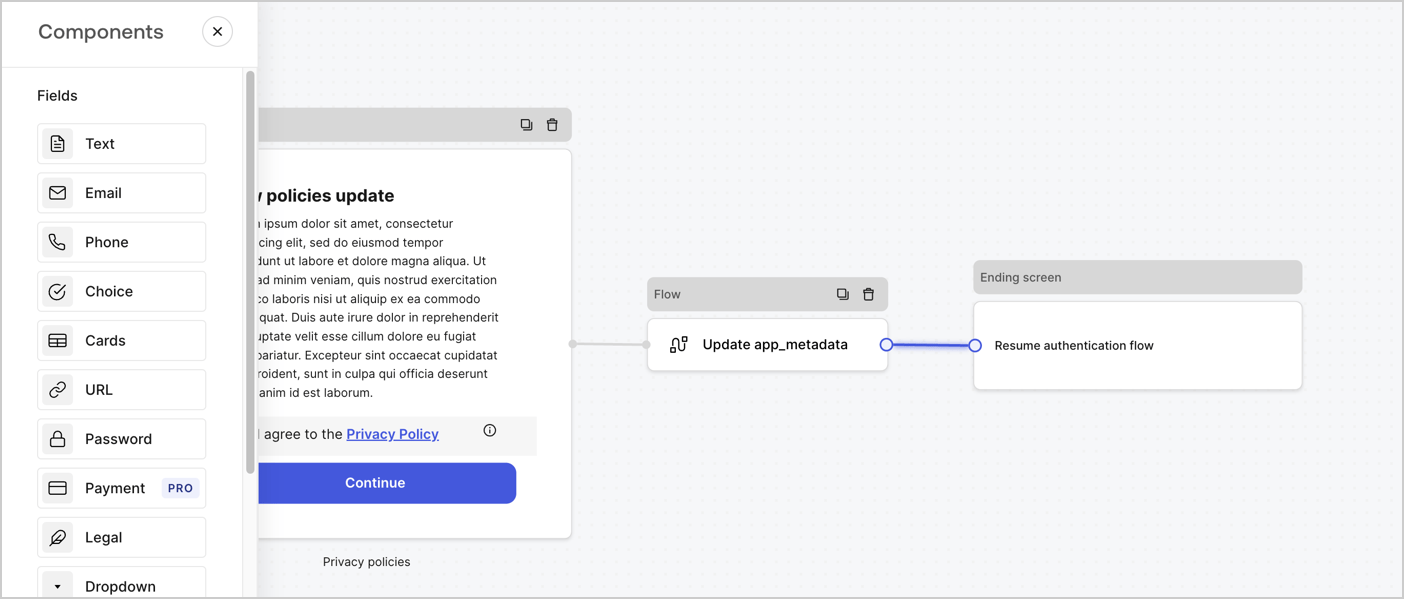
Add a **Flow** node after the **Step** node to update the `app_metadata` and resume the authentication flow by following these steps:

1. Select **Flow** from the bottom of the Form editor.
2. Remove the existing link between the **Step** and **Ending Screen** nodes.
3. Select the new **Flow** > **Click to add a flow** > **Create a new flow.**

   * Enter `Update app_metadata` in the **Name** field.
   * Select **Create**.
   * Select **Save**.
4. Link the **Flow** node to the **Step** and **Ending Screen** nodes as pictured below.
5. Select **Publish** to save.
<Frame>
  <img src="https://mintcdn.com/docs-staging-chore-gt-workflow/uUVSo9swGrI6msJr/docs/images/cdy7uua7fh8z/6YIkzm7SrpM9LW76AXuRzh/353c518fe82bbaa440836da1d83596d6/link-policies.png?fit=max&auto=format&n=uUVSo9swGrI6msJr&q=85&s=860531dba3c472eaeaf2844381feac32" alt="Dashboard > Actions > Forms > Form" data-og-width="1404" width="1404" data-og-height="599" height="599" data-path="docs/images/cdy7uua7fh8z/6YIkzm7SrpM9LW76AXuRzh/353c518fe82bbaa440836da1d83596d6/link-policies.png" data-optimize="true" data-opv="3" srcset="https://mintcdn.com/docs-staging-chore-gt-workflow/uUVSo9swGrI6msJr/docs/images/cdy7uua7fh8z/6YIkzm7SrpM9LW76AXuRzh/353c518fe82bbaa440836da1d83596d6/link-policies.png?w=280&fit=max&auto=format&n=uUVSo9swGrI6msJr&q=85&s=bea77b9798cf204fb929e57981b11441 280w, https://mintcdn.com/docs-staging-chore-gt-workflow/uUVSo9swGrI6msJr/docs/images/cdy7uua7fh8z/6YIkzm7SrpM9LW76AXuRzh/353c518fe82bbaa440836da1d83596d6/link-policies.png?w=560&fit=max&auto=format&n=uUVSo9swGrI6msJr&q=85&s=2a28811a9ebfd4abc19a5a466a166528 560w, https://mintcdn.com/docs-staging-chore-gt-workflow/uUVSo9swGrI6msJr/docs/images/cdy7uua7fh8z/6YIkzm7SrpM9LW76AXuRzh/353c518fe82bbaa440836da1d83596d6/link-policies.png?w=840&fit=max&auto=format&n=uUVSo9swGrI6msJr&q=85&s=e8cc7e9e5ecdcec5cc292d83d63fe01c 840w, https://mintcdn.com/docs-staging-chore-gt-workflow/uUVSo9swGrI6msJr/docs/images/cdy7uua7fh8z/6YIkzm7SrpM9LW76AXuRzh/353c518fe82bbaa440836da1d83596d6/link-policies.png?w=1100&fit=max&auto=format&n=uUVSo9swGrI6msJr&q=85&s=b2a15042d2b82678ed40884c001b2098 1100w, https://mintcdn.com/docs-staging-chore-gt-workflow/uUVSo9swGrI6msJr/docs/images/cdy7uua7fh8z/6YIkzm7SrpM9LW76AXuRzh/353c518fe82bbaa440836da1d83596d6/link-policies.png?w=1650&fit=max&auto=format&n=uUVSo9swGrI6msJr&q=85&s=3c59c80fad2af8996b99066beb7f609a 1650w, https://mintcdn.com/docs-staging-chore-gt-workflow/uUVSo9swGrI6msJr/docs/images/cdy7uua7fh8z/6YIkzm7SrpM9LW76AXuRzh/353c518fe82bbaa440836da1d83596d6/link-policies.png?w=2500&fit=max&auto=format&n=uUVSo9swGrI6msJr&q=85&s=13608c2e929e73b0a49120771d062ae3 2500w" />
</Frame>

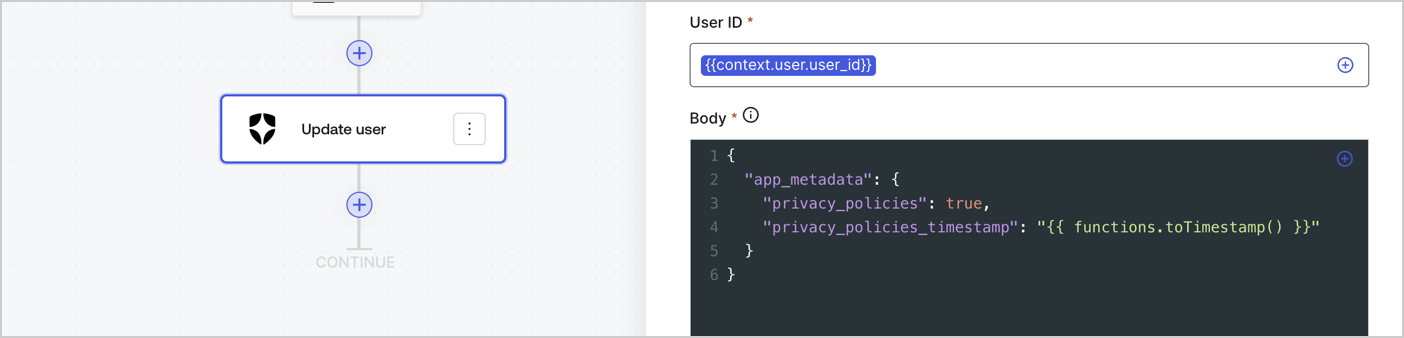
Add an Auth0 Update user action to the flow by following these steps:

1. Select the **Flow** **Update app\_metadata** > **Edit flow** to open the Flow editor in a new tab.
2. Below the StartAction, select the **+** icon to add an **Update user** action. Complete the fields below, then select **Save** to continue.

   * **Connection**: Select from the dropdown the Vault connection to your M2M application.

   * **User ID**: Enter `{{context.user.user_id}}`.

   * **Body**: Copy and paste the following code to update the app\_metadata with the privacy\_policies and privacy\_policies\_timestamp properties.

     ```text lines theme={null}
     {
       "app_metadata": {
         "privacy_policies": true,
         "privacy_policies_timestamp": "{{ functions.toTimestamp() }}"
       }
     }
     ```

   * Select **Save**.
3. Select **Publish** to save.
<Frame>
  <img src="https://mintcdn.com/docs-staging-chore-gt-workflow/3uTLr_WfthsodBVd/docs/images/cdy7uua7fh8z/CvMNIwWrOUwaFW4X3G28p/1fb70ae57a20749d9ffaaba8dc0b7e26/update-user-privacy.png?fit=max&auto=format&n=3uTLr_WfthsodBVd&q=85&s=6175f9d32665f85e3fe3f4aaa0e9ffa0" alt="Dashboard > Actions > Forms > User case privacy policy code" data-og-width="1404" width="1404" data-og-height="338" height="338" data-path="docs/images/cdy7uua7fh8z/CvMNIwWrOUwaFW4X3G28p/1fb70ae57a20749d9ffaaba8dc0b7e26/update-user-privacy.png" data-optimize="true" data-opv="3" srcset="https://mintcdn.com/docs-staging-chore-gt-workflow/3uTLr_WfthsodBVd/docs/images/cdy7uua7fh8z/CvMNIwWrOUwaFW4X3G28p/1fb70ae57a20749d9ffaaba8dc0b7e26/update-user-privacy.png?w=280&fit=max&auto=format&n=3uTLr_WfthsodBVd&q=85&s=81b33ff67cb9e190e645d4cf35fd063d 280w, https://mintcdn.com/docs-staging-chore-gt-workflow/3uTLr_WfthsodBVd/docs/images/cdy7uua7fh8z/CvMNIwWrOUwaFW4X3G28p/1fb70ae57a20749d9ffaaba8dc0b7e26/update-user-privacy.png?w=560&fit=max&auto=format&n=3uTLr_WfthsodBVd&q=85&s=61f6fc8a8858757593b692c3a3c3f512 560w, https://mintcdn.com/docs-staging-chore-gt-workflow/3uTLr_WfthsodBVd/docs/images/cdy7uua7fh8z/CvMNIwWrOUwaFW4X3G28p/1fb70ae57a20749d9ffaaba8dc0b7e26/update-user-privacy.png?w=840&fit=max&auto=format&n=3uTLr_WfthsodBVd&q=85&s=e67c639b266fdd919790e080d7411c2e 840w, https://mintcdn.com/docs-staging-chore-gt-workflow/3uTLr_WfthsodBVd/docs/images/cdy7uua7fh8z/CvMNIwWrOUwaFW4X3G28p/1fb70ae57a20749d9ffaaba8dc0b7e26/update-user-privacy.png?w=1100&fit=max&auto=format&n=3uTLr_WfthsodBVd&q=85&s=0459cb8a64f98ec42113605294c81f3a 1100w, https://mintcdn.com/docs-staging-chore-gt-workflow/3uTLr_WfthsodBVd/docs/images/cdy7uua7fh8z/CvMNIwWrOUwaFW4X3G28p/1fb70ae57a20749d9ffaaba8dc0b7e26/update-user-privacy.png?w=1650&fit=max&auto=format&n=3uTLr_WfthsodBVd&q=85&s=4b43d22bfa9d314c6eadc2f009110c65 1650w, https://mintcdn.com/docs-staging-chore-gt-workflow/3uTLr_WfthsodBVd/docs/images/cdy7uua7fh8z/CvMNIwWrOUwaFW4X3G28p/1fb70ae57a20749d9ffaaba8dc0b7e26/update-user-privacy.png?w=2500&fit=max&auto=format&n=3uTLr_WfthsodBVd&q=85&s=cb892b28634ed8a4fa76c9563a3ad77b 2500w" />
</Frame>

<Callout icon="file-lines" color="#0EA5E9" iconType="regular">
  The flow **Update app\_metadata** adds a `privacy_policies true` value to the app`_metadata` object and also generates a timestamp with a [helper function.](/docs/customize/forms/variables)
</Callout>

## Retrieve the form render code

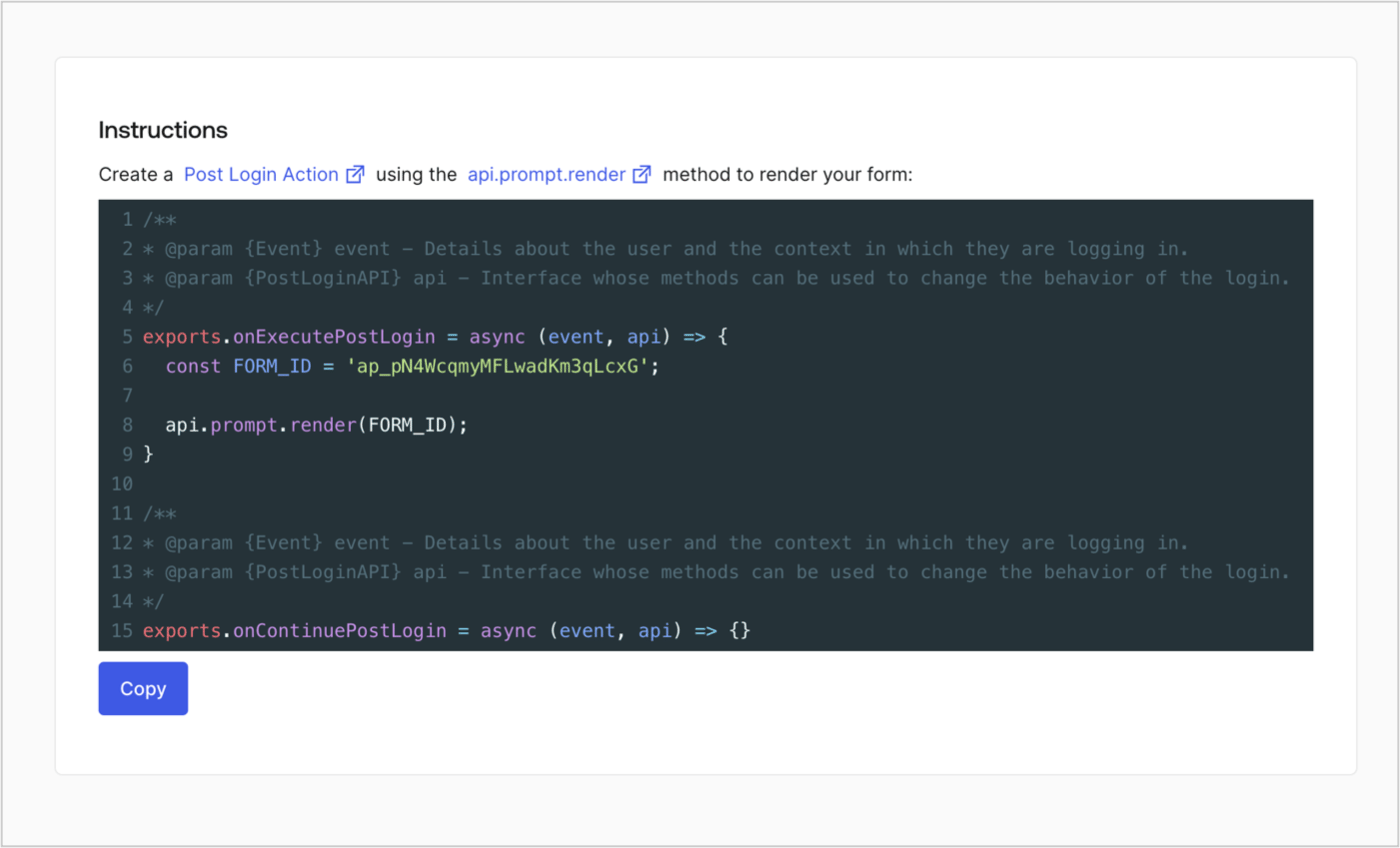
Retrieve your form render code to visually render the form with a custom Post Login Action by following these steps:

* From the Form editor, select **`<> Render`**.
* Select **Copy**.
<Frame>
  <img src="https://mintcdn.com/docs-staging-chore-gt-workflow/ZhLEyvQbzaywB8Vw/docs/images/cdy7uua7fh8z/2EIUzc539sq9lwoTKbjoJv/496a864c0fc44a782c9cadca119dbfb0/embed.png?fit=max&auto=format&n=ZhLEyvQbzaywB8Vw&q=85&s=d874c56382da6081716e9028453d045c" alt="Dashboard > Actions > Forms > Form > Embed" data-og-width="1400" width="1400" data-og-height="848" height="848" data-path="docs/images/cdy7uua7fh8z/2EIUzc539sq9lwoTKbjoJv/496a864c0fc44a782c9cadca119dbfb0/embed.png" data-optimize="true" data-opv="3" srcset="https://mintcdn.com/docs-staging-chore-gt-workflow/ZhLEyvQbzaywB8Vw/docs/images/cdy7uua7fh8z/2EIUzc539sq9lwoTKbjoJv/496a864c0fc44a782c9cadca119dbfb0/embed.png?w=280&fit=max&auto=format&n=ZhLEyvQbzaywB8Vw&q=85&s=bf12a9a37efffae16796983044887c1d 280w, https://mintcdn.com/docs-staging-chore-gt-workflow/ZhLEyvQbzaywB8Vw/docs/images/cdy7uua7fh8z/2EIUzc539sq9lwoTKbjoJv/496a864c0fc44a782c9cadca119dbfb0/embed.png?w=560&fit=max&auto=format&n=ZhLEyvQbzaywB8Vw&q=85&s=76ea535582cbf44381b2b9942ecafd87 560w, https://mintcdn.com/docs-staging-chore-gt-workflow/ZhLEyvQbzaywB8Vw/docs/images/cdy7uua7fh8z/2EIUzc539sq9lwoTKbjoJv/496a864c0fc44a782c9cadca119dbfb0/embed.png?w=840&fit=max&auto=format&n=ZhLEyvQbzaywB8Vw&q=85&s=c9958e2a831706a46b0ea04883d6daaf 840w, https://mintcdn.com/docs-staging-chore-gt-workflow/ZhLEyvQbzaywB8Vw/docs/images/cdy7uua7fh8z/2EIUzc539sq9lwoTKbjoJv/496a864c0fc44a782c9cadca119dbfb0/embed.png?w=1100&fit=max&auto=format&n=ZhLEyvQbzaywB8Vw&q=85&s=7a487eefc6c625268a74ee02f1a0cd9d 1100w, https://mintcdn.com/docs-staging-chore-gt-workflow/ZhLEyvQbzaywB8Vw/docs/images/cdy7uua7fh8z/2EIUzc539sq9lwoTKbjoJv/496a864c0fc44a782c9cadca119dbfb0/embed.png?w=1650&fit=max&auto=format&n=ZhLEyvQbzaywB8Vw&q=85&s=f98fd738ed8ba7acbea81b8b7e7a58fe 1650w, https://mintcdn.com/docs-staging-chore-gt-workflow/ZhLEyvQbzaywB8Vw/docs/images/cdy7uua7fh8z/2EIUzc539sq9lwoTKbjoJv/496a864c0fc44a782c9cadca119dbfb0/embed.png?w=2500&fit=max&auto=format&n=ZhLEyvQbzaywB8Vw&q=85&s=cdb3c66da7693bb405f36e8a0f16c678 2500w" />
</Frame>

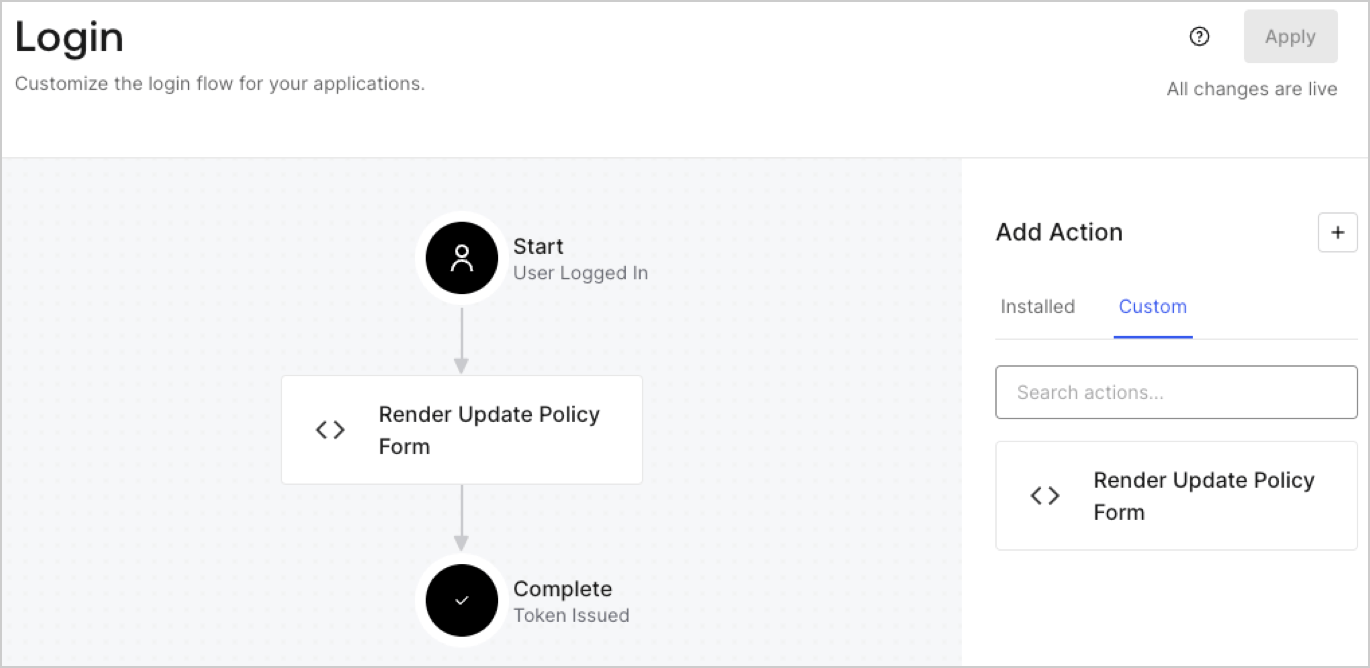
## Create a Post Login Action

Create a post-login Action to render your form by following these steps:

1. Navigate to **Auth0 Dashboard > Actions > Flows > Login.**
2. Select the **+** icon and Select **Build from scratch**:

   * **Name**: Enter `Render Update Policy Form`.
   * **Trigger**: Select `Login / Post Login`.
   * **Runtime**: Select the recommended version.
3. Select **Create**.

To configure the post-login Action:

1. Delete the existing code from the Code editor.
2. Paste the form render code into the Code editor.
3. Edit the code to define the conditional logic that will render the form.

   ```javascript lines theme={null}
   /**
   * @param {Event} event - Details about the user and the context in which they are logging in.
   * @param {PostLoginAPI} api - Interface whose methods can be used to change the behavior of the login.
   */
   exports.onExecutePostLogin = async (event, api) => {
     const FORM_ID = 'REPLACE_WITH_YOUR_FORM_ID';

     if (event.user.app_metadata.privacy_policies !== true) {
       api.prompt.render(FORM_ID);
     }
   }

   exports.onContinuePostLogin = async (event, api) => { }
   ```

   <Callout icon="file-lines" color="#0EA5E9" iconType="regular">
     The example code above will render the form when a user is missing the app metadata `privacy_policies` property.
   </Callout>
4. Select **Deploy.**
5. Drag and Drop the **Render Update Policy Form** Action to the **Login** flow.
   <Frame>
     <img src="https://mintcdn.com/docs-staging-chore-gt-workflow/PDhWL11UcoUTgs9t/docs/images/cdy7uua7fh8z/5TOwDgevZsBqd7yZynUYWU/41ca909dc3007aed4f40ff794a05efa5/postlogin.png?fit=max&auto=format&n=PDhWL11UcoUTgs9t&q=85&s=aa8448e3962b5263728b42633a68e680" alt="Dashboard > Forms > Use Case > Render update policy form login action" data-og-width="1370" width="1370" data-og-height="668" height="668" data-path="docs/images/cdy7uua7fh8z/5TOwDgevZsBqd7yZynUYWU/41ca909dc3007aed4f40ff794a05efa5/postlogin.png" data-optimize="true" data-opv="3" srcset="https://mintcdn.com/docs-staging-chore-gt-workflow/PDhWL11UcoUTgs9t/docs/images/cdy7uua7fh8z/5TOwDgevZsBqd7yZynUYWU/41ca909dc3007aed4f40ff794a05efa5/postlogin.png?w=280&fit=max&auto=format&n=PDhWL11UcoUTgs9t&q=85&s=34c983da9d00c6a1cff4a7338b998dd0 280w, https://mintcdn.com/docs-staging-chore-gt-workflow/PDhWL11UcoUTgs9t/docs/images/cdy7uua7fh8z/5TOwDgevZsBqd7yZynUYWU/41ca909dc3007aed4f40ff794a05efa5/postlogin.png?w=560&fit=max&auto=format&n=PDhWL11UcoUTgs9t&q=85&s=a3c054378b3cd4d5d0585a86aee7cff0 560w, https://mintcdn.com/docs-staging-chore-gt-workflow/PDhWL11UcoUTgs9t/docs/images/cdy7uua7fh8z/5TOwDgevZsBqd7yZynUYWU/41ca909dc3007aed4f40ff794a05efa5/postlogin.png?w=840&fit=max&auto=format&n=PDhWL11UcoUTgs9t&q=85&s=ebc23da0cc3300eaa4eca3aa5fc167d4 840w, https://mintcdn.com/docs-staging-chore-gt-workflow/PDhWL11UcoUTgs9t/docs/images/cdy7uua7fh8z/5TOwDgevZsBqd7yZynUYWU/41ca909dc3007aed4f40ff794a05efa5/postlogin.png?w=1100&fit=max&auto=format&n=PDhWL11UcoUTgs9t&q=85&s=9d8ea00295627bf7a499b532a1e704a9 1100w, https://mintcdn.com/docs-staging-chore-gt-workflow/PDhWL11UcoUTgs9t/docs/images/cdy7uua7fh8z/5TOwDgevZsBqd7yZynUYWU/41ca909dc3007aed4f40ff794a05efa5/postlogin.png?w=1650&fit=max&auto=format&n=PDhWL11UcoUTgs9t&q=85&s=53634d4bfa434ff442c674771b412368 1650w, https://mintcdn.com/docs-staging-chore-gt-workflow/PDhWL11UcoUTgs9t/docs/images/cdy7uua7fh8z/5TOwDgevZsBqd7yZynUYWU/41ca909dc3007aed4f40ff794a05efa5/postlogin.png?w=2500&fit=max&auto=format&n=PDhWL11UcoUTgs9t&q=85&s=fdf8c5ca788963b66f25df42633cca57 2500w" />
   </Frame>
6. Select **Apply.**

### Test implementation

Test the implementation by following these steps:

1. Log in with an existing user whose app`_metadata` attribute `privacy_policies` does not have a value.
2. The post-login Action in the Login flow will render the form and prompt for acceptance.
3. Select **Auth0 Dashboard > User Management > Users,** locate the user and verify that the `app_metadata` attribute `privacy_policies` contains a `true` value and a timestamp.
